Sessions
A session is a conversation between you and an agent. Each session tracks the full history of prompts you send and the responses the agent generates.
Session Modes
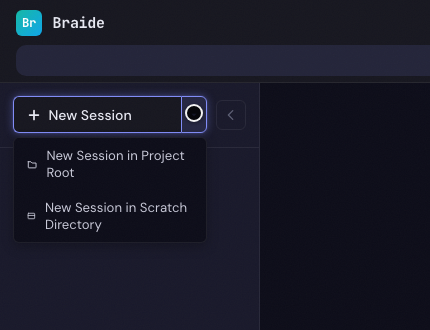
Every session runs in one of three modes, which determine the working directory the agent operates in. The mode is chosen when the session is created and cannot be changed afterwards.
| Mode | Working directory | Use for |
|---|---|---|
| Worktree (default) | A fresh git worktree on a dedicated branch | Feature work, experiments, anything you want isolated from your other sessions |
| Project Root | The project's root directory itself | Cross-branch operations like merging or rebasing session branches back into main |
| Scratch | An empty ephemeral directory under the session dir | Using the agent as a general assistant without exposing your project's sources |
You choose a mode from the New Session split button in the sidebar — see Creating a Session for the UI, and the sub-sections below for the semantics.
Worktree Mode (default)
Each worktree session runs inside its own git worktree — an isolated copy of the project's repository. This means:
- No cross-session interference — File changes made by one session's agent do not affect any other session or your main working directory.
- Independent branches — Each session gets its own dedicated branch, created from the project's current HEAD at the time the session starts.
- Safe experimentation — You can let agents modify, create, and delete files freely. The changes are confined to the session's worktree directory.
- Diff tracking — Braide tracks all file changes within a session's worktree and can display a diff summary of what the agent has changed. The built-in diff viewer supports unified, split (side-by-side), and raw views with word-level change highlighting and a full-screen modal for detailed review. See the Running a Session guide for details.
For more details on working with worktrees, including how to commit, rebase, and merge changes, see the Worktrees guide.
Projects Without a Git Repository
If the project's root path is not a git repository, worktree mode cannot be used and every new session runs in Project Root mode automatically — the agent runs in the project root directly and the session is badged with the orange ROOT pill.
Worktrees are the recommended way to work: they keep each session isolated on its own branch, let you review per-session diffs, and make the commit / merge / pull-request actions meaningful. When the project root is not a git repo, the sidebar adapts:
- The New Session split button's primary action is relabelled to New Session in Project Root, so clicks always produce a working session.
- Project-root sessions are singleton per project, so once one exists the primary button is disabled; you can still start a scratch session from the caret-menu.
- Beneath the split button, a banner offers an Initialise Git Repository button. Clicking it initialises a git repository in the project root, stages any existing files, and makes an initial commit — so worktree sessions become available immediately.
Once init completes, the banner disappears and the split button reverts to its normal worktree-first behaviour. If the init fails (for example the project root is inside another non-writable git repository), the error is shown in the banner and the UI stays in the non-git state so you can retry.
Project Root Mode
A project-root session runs the agent directly in the project's root path, with no worktree and no dedicated branch. It is designed for actions that need to see the real repository state, such as merging a session branch back into main.
Project-root sessions are marked with an orange ROOT pill in the sidebar and behave differently from worktree sessions:
- Singleton per project — Only one project-root session may exist at a time. The menu option is disabled until the existing one is deleted.
- Cannot be archived — The archive action is hidden in the context menu. Project-root sessions can still be deleted.
- No base branch tracked — Since there is no session branch, the branch selector in the prompt toolbar is hidden and branch-related sidebar actions (commit, merge, PR) do not apply.
- Changes hit your working tree directly — Any files the agent writes land in the project root, exactly as if you had made them yourself. Review them with
git status/git diffbefore committing.
Scratch Mode
A scratch session runs in an empty directory that has no git repository and no project source — the agent starts with an empty slate.
Scratch sessions are marked with a blue SCRATCH pill in the sidebar and are useful for:
- Asking the agent general questions without risking accidental edits to project files
- Prototyping a snippet or scaffold in isolation before copying it into the project
- Experimenting with an agent's tools against a clean directory
Like project-root sessions, scratch sessions have no git repository, so the branch selector and branch-related sidebar actions are hidden.
When a scratch session is deleted, its directory is removed — nothing persists in the project.
Session Lifecycle
- Created — You create a session by selecting an agent. A row appears in the sidebar at initializing status; its subtitle ticks through Preparing session… → Creating workspace… → Connecting to agent… — the same steps shown on the welcome splash — while the working directory is provisioned and the agent is initialised. Sessions in ROOT or SCRATCH mode show their mode pill from the moment the row appears, so the badge does not flicker on the transition. The row moves to ready once both steps succeed. If either step fails, the session is marked failed instead — see Failed Session Setup.
- Prompting — You type and send a prompt. The session transitions to a running state.
- Streaming — The agent processes your prompt and streams back events in real time.
- Idle — The agent finishes responding. You can send another prompt or end the session.
- Cancelled — You can cancel a running session at any time using the cancel button.
- Archived — A session you've finished with (for now) but don't want to delete. The worktree directory is removed from disk, but the session's committed history and uncommitted changes are preserved in git so the session can be restored later via Unarchive. Archived sessions show an affordance panel in place of the terminal/file-browser/prompt and are eligible for automatic pruning after a configurable retention window. See Archive & Retention for the full lifecycle.
Failed Session Setup
If the worktree cannot be created or the agent fails to initialise (agent not running, timeout, etc.), the session's setup is aborted. Rather than disappearing silently, the session is kept in the sidebar at failed status so you can see what went wrong:
- The row subtitle reads "Setup failed: {reason}" so you can see the cause at a glance.
- Commit / merge / pull-request actions are disabled in the context menu because there is no agent connection.
- Failed sessions are only removed by explicit user action — Permanently Delete or Archive from the context menu.
Session Recovery
When an agent is upgraded or restarted, the agent's memory of your session may be gone. Braide handles this transparently so you can keep working without manually recreating the session.
When you send a prompt to a session whose agent has restarted:
- Resume attempt — Braide first tries to resume the session directly. If the agent still recognises the session, work continues normally.
- Fallback to a fresh session — If the agent no longer recognises the session, Braide creates a new agent session and remaps it to your existing session. All your session data, config options, and sidebar state stay the same.
- History compression — The conversation history from the original session is compressed into a summary and prepended to your prompt, so the agent has enough context to continue where it left off.
Visual indicator
When a session is recreated, a context compressed card appears in the event stream at the boundary between old and new history. It shows an amber indicator with the total number of rounds from the previous session and how much detail was retained for each round — full, compact, minimal, or omitted. Older rounds are the first to be compressed when the summary gets long.
Session Status Indicators
Each session in the sidebar displays a status icon that reflects its current state:
| Status | Indicator | Description |
|---|---|---|
| Initializing | Rotating dashed arc | Server has created the session record but the worktree or agent handshake is still in progress. The sidebar subtitle ticks through "Preparing session…", "Creating workspace…", and "Connecting to agent…" — the same steps as the welcome splash |
| Not started | Hollow circle | Session is fully set up but no prompt has been sent yet |
| Running | Animated spinner | Agent is actively processing a prompt |
| Running with plan | Segmented donut chart | Agent is working through a plan — shows completed (green), in-progress (blue), and pending (grey) segments with a count (e.g. 2/5) |
| Paused | Orange pause icon | Session is waiting for user input (e.g. a permission request) |
| Completed | Green checkmark | Agent has finished and the session is idle |
| Error | Red X | Something went wrong mid-session — check the session for error details |
| Failed | Red X on a tinted disk | Session setup did not complete (worktree or agent handshake failed). The subtitle reads "Setup failed: {reason}" and the row stays in the sidebar until you delete or archive it |
| Archived | Archive box icon | Session is archived — worktree removed, history preserved. Opening the session shows the archived affordance with an Unarchive button. See Archive & Retention |
When a session is running with a plan, the donut chart animates with a rotating glow to indicate active work, and the segment proportions update in real time as tasks are completed.
Real-Time Events
While a session is running, you'll see a stream of events in the event history.
- Chat messages — The agent's text responses, rendered as markdown
- Tool calls — Actions the agent takes (reading files, running commands, searching code)
- Tool results — The output of those actions
- Permission requests — When the agent needs your approval before executing certain tools
- Config updates — Changes to session configuration options
Cost and Context Usage
As the agent works, the session tracks cumulative cost and context window usage. This information is displayed in a status bar anchored to the bottom of the session view, above the prompt input, rather than inline in the event stream.
- Cost — The total spend for the session so far, displayed as a dollar amount (e.g.
$0.2819). - Context usage — The number of tokens consumed out of the model's context window, shown as
used / total (percentage)(e.g.37,120 / 1,000,000 (3.7%)).
When the agent is actively working, the cost info appears right-aligned on the same line as the "Working..." status indicator. When the agent is idle, the cost info remains visible on its own as long as usage data has been reported for the session.
Sub-agent and Skill Usage
On the same status bar, to the left of the cost and context figures, two optional pill buttons summarise the delegation activity that has happened in the session:
- Sub-agents N — the total number of times the main agent has delegated a subtask to a helper sub-agent during this session.
- Skills N — the total number of times the agent has loaded a named skill during this session.
Each pill is hidden when its count is zero, so a session with no delegation shows only the running cost/context figures. The figures update live as new calls arrive.
Clicking a pill opens a popover anchored above the button with a grouped breakdown:
- The Sub-agents popover lists each distinct sub-agent type that was invoked (e.g. "Explore", "Plan", "general-purpose"), the number of times it was called, and the unique descriptions passed to each call.
- The Skills popover lists each distinct skill name (e.g. "likec4-dsl", "tdd") and the number of times it was loaded.
In both popovers, groups are sorted by call count (most-used first), then alphabetically. Press Escape or click outside the popover to dismiss it; click the originating pill again to toggle it closed.
File Activity
A third pill — Files N — appears on the same status bar, to the right of the sub-agent and skill pills. It surfaces where the agent's Read / Write / Edit / MultiEdit / NotebookEdit tool calls have landed in the worktree, giving you three signals at a glance: hotspots, coverage, and the balance between reads and writes.
- N is the number of distinct file paths the agent has touched so far. Only completed operations are counted — pending or failed calls are ignored.
- The pill is hidden when no files have been touched, so fresh sessions show nothing until the first file operation completes.
- The figure updates live as the agent works and survives session reload.
Clicking the pill opens an anchored popover whose bottom edge sits just above the pill. As you expand or collapse rows, the popover's top edge grows or shrinks while its bottom stays pinned — so the relationship between the popover and the pill remains stable. When there isn't enough room above (e.g. the session view is short), the popover flips below the pill instead.
Compact popover
The popover shows a condensed activity tree — only directories on the path to a touched file plus the touched files themselves.
- Directories start collapsed. Click a directory row to expand it and reveal its touched descendants. Click again to collapse.
- Each row ends with a stacked mini-bar (reads vs. writes) and the total call count. Hovering the bar shows a tooltip like
3 reads, 2 writes. Reads are rendered in the accent colour; writes share a second, warmer hue. Every write-style operation shares the write colour — the UI does not distinguish between them. - File icons reuse the File Browser badge palette (two-letter extension label coloured per language) so the visual cue matches.
- Directory counts aggregate descendants. A directory's mini-bar and count are the sum of every touched file beneath it, so a large total on a parent directory flags a hotspot even when its immediate children are collapsed.
- Below each expanded directory, a greyed
+N untouched filessummary counts the direct siblings in that directory the agent has not touched. It's display-only in the compact view — it helps you see coverage without widening the popover. - If any file the agent touched lies outside the session worktree root, a distinct Outside worktree branch appears at the bottom with a warning icon and its own expandable list of files.
- Clicking a file row opens that file in the existing file editor overlay and closes the popover.
A maximise icon in the popover header opens the full File activity modal.
Expanded modal
The modal opens on a larger canvas with a tab bar offering two complementary views of the same underlying activity data:
- Tree — the hierarchical list view (same rendering as the compact popover, with extra affordances described below).
- Treemap — a spatial view where each directory and file is drawn as a rectangle sized by its activity.
The selected tab is remembered so the modal reopens on whichever view you last used. A filename search input lives in the modal header and is shared across both tabs: typing filters the data each tab renders, and clearing the search restores the unfiltered view.
Press Escape or click outside the modal to dismiss it at any time. Clicking a file in either tab opens it in the file editor overlay and closes the modal.
Tree tab
The Tree tab renders the same condensed activity tree as the compact popover, with two modal-only affordances:
- Filter-driven auto-expand. When the search is active, every directory whose descendants match is auto-expanded so matches are visible; clearing the filter restores your previous expand/collapse state.
- Interactive untouched-aggregate rows. The
+N untouched filesrows are clickable. Expanding one reveals the specific untouched siblings inline at low opacity, so you can see which files were skipped — useful for judging whether the agent missed something it should have considered.
Treemap tab
The Treemap tab lays out the directory containing the current drill-down point as a squarified treemap. Every rectangle is either a touched file or a directory whose descendants were touched — untouched files and directories that drop out of the current metric are excluded entirely.
Single-level rendering. The treemap shows only the immediate children of the drill-down point. Directories render as a single rectangle whose size reflects the aggregated activity of everything beneath them; clicking a directory drills into it, revealing its children as a fresh treemap. This keeps each level legible instead of recursively packing everything into one image.
Area metric. A segmented control above the treemap selects what drives rectangle size:
- Total (default) — reads + writes combined.
- Writes — write operations only.
- Reads — read operations only.
Switching metric preserves your drill-down position so you can compare the spatial shape of reads vs. writes within the same subtree.
Colour. Each rectangle uses a categorical base colour that identifies its kind, with a thin read/write strip along the bottom edge that encodes the activity balance. The encoding is the same in all three metric modes — switching metric only changes how the rectangles are sized.
- Base colour. Files render in a vibrant indigo from the theme accent family, directories in a neutral slate. The two colours are deliberately different so you can tell at a glance whether a rectangle drills into more children (directory) or opens in the file editor (file). The base does not vary with activity counts — magnitude is conveyed by the rectangle's area, not by its hue.
- Activity strip. A 4-pixel strip pinned to the bottom of every cell is split into two segments sized by the read-to-write ratio: the left segment fills with the accent colour for reads, the right segment fills with the warmer write-activity hue for writes. A pure-read file shows a solid accent strip across the whole bottom edge; a pure-write file shows a solid write-hue strip; a half-and-half file shows a clean 50/50 split with no muddy mid-tone. Cells with zero activity (only possible for empty containers) render no strip at all.
- Corner rounding. Cells whose edges meet the bottom-left or bottom-right corner of the treemap container round that single corner to match the surrounding modal's radius, so the visualisation reads as one continuous panel rather than a grid of clipped rectangles.
Labels. Three visibility tiers by rectangle area keep the view readable as files get smaller:
- Large — file or directory name, file-type icon (for directories: a stack of the three most common extensions beneath), and an
N R · N Wcounts line. - Medium — name and icon only.
- Small — no label; hover the rectangle for a tooltip showing the full path and counts.
Drill-down. Navigate between levels with any of:
- Click a directory rectangle to drill in.
- Click a breadcrumb segment (
root / src / components / …) at the top of the tab to jump to that level. - Click the Back button to ascend one level.
- Press Backspace with focus inside the treemap to ascend one level.
Drill-down is reset when you switch tabs or edit the search filter, and preserved when you toggle the area metric.
Keyboard. Every rectangle is focusable. Tab follows native DOM order; inside the treemap, arrow keys move focus spatially by centroid direction, Enter / Space drills into a directory or opens a file, and Backspace ascends one level. Escape still closes the modal.
Accessibility. Screen readers can announce the current drill-down, area metric, and the path and counts for each rectangle. Drill-down and metric changes announce through a polite live region.
Empty state. When the search filter rules out every touched file — or when a single-metric toggle leaves nothing with non-zero activity — the treemap shows a short "No files match the current filter." message instead of an empty canvas.
Plan Block
Some agents break their work into a structured plan — a list of tasks with progress tracking. When a plan is active, it appears as an anchored bar at the bottom of the session view.
What the Plan Shows
Each plan item has a status icon:
- Green checkmark — Completed
- Amber circle — In progress
- Grey dot — Pending
The plan bar updates in real time as the agent works through tasks.
Collapsed View
By default, the plan bar is collapsed. In this state it shows:
- A "Plan" label
- A progress count (e.g. 2/5) indicating how many items are completed out of the total
- A preview of the currently in-progress items
Expanding and Collapsing
Click anywhere on the plan bar to expand it. The expanded view shows the full list of all plan items with their status icons, scrollable if the list is long. Click the bar again to collapse it back to the summary view. The toggle arrow rotates to indicate the current state.
Session Features
Prompt Input
The prompt input supports several features:
- Slash commands — Type
/to see available commands with fuzzy matching autocomplete - File references — Type
@to autocomplete file paths for attaching context - Image attachments — Click the paperclip icon or drag image files onto the session to attach screenshots and other local images to your next prompt. See Image Attachments for details
- Config options — Dynamic options bar above the input for adjusting agent behavior
- Multi-line input — The textarea auto-grows as you type
- Queued prompts — Submit additional prompts while the agent is still working; they are held in a queue and sent automatically when the agent finishes
Queued Prompts
You can continue typing and submitting prompts while the agent is processing a previous one. Instead of blocking input, the prompt is added to a queue that is displayed as a row of removable chips above the input area.
When the agent completes its current task, all queued prompts are automatically sent together as a single prompt submission. Each queued prompt becomes a separate content block so the agent sees them as distinct instructions.
- Queue while running — The textarea stays enabled during agent execution. Press Enter to add a prompt to the queue.
- Visual indicator — Queued prompts appear as labelled chips with a "Queued" heading. Click the × on any chip to remove it before it is sent, or click the chip to edit its text.
- Drag to reorder — Drag and drop chips to change the order in which prompts are sent. Prompts are submitted left to right.
- Automatic flush — When the agent finishes, the queue is flushed immediately without any manual action.
- Button hint — While the agent is running, the send button keeps its regular appearance; only its tooltip changes to "Queue prompt" to indicate that submissions are queued rather than sent immediately.
The queue, scheduling, and attachment state are all server-owned and reach the UI via SSE. See Prompt Queue & Attachments for the data model, event taxonomy, and optimistic-UI contract.
Session Sidebar
The left sidebar lists all sessions for the current project:
-
Status icon — Shows the current state of each session (see Session Status Indicators above)
-
Auto-labeling — Sessions are automatically labeled based on the first prompt text
-
Rename — Click a session name to rename it
-
Subtitle — Below each session label, a subtitle line shows the persona name (when the session was created with a persona) or the agent name (for sessions without a persona, or when the original persona has since been deleted), followed by the session creation date. The agent ID is used as a last resort if the agent is not currently known to the client. See Using Personas in Sessions for how personas are associated with sessions.
-
Mode pill — Sessions in a non-default mode display a coloured pill next to the agent/date line: orange ROOT for project-root, blue SCRATCH for scratch sessions
-
Active-terminal dot — A small green dot in the top-right corner of the status icon indicates that the session's embedded terminal is running on the server. The dot mirrors the same indicator on the terminal toggle button inside the session — useful for spotting long-running shells in other sessions at a glance. Hovering the dot shows a tooltip explaining what it means. The dot extinguishes the moment the shell process exits, whether you close it explicitly or it ends on its own.
-
Context menu — Click the kebab menu (three dots) on a session item to access actions:
- Archive / Unarchive — Move the session to or from the archived section (hidden for project-root sessions, which cannot be archived)
- Permanently Delete — Remove the session and its worktree
- Commit actions — Configured commit actions from project settings, enabled when the worktree has staged, unstaged, or untracked files
- Merge actions — Configured merge actions from project settings, enabled when the session branch has commits ahead of its base branch
- Status info — Shows commits ahead of the base branch and a summary of file changes (staged, modified, untracked)
For a failed session the menu is still available but the commit, merge, and pull-request entries are disabled — there's no agent connection or session branch to act on. Archive and Permanently Delete are the only meaningful actions and are how you remove the row from the list.
For details on configuring commit and merge actions, see the Actions guide.
Cancelling
Click the cancel button (visible while the agent is running) to stop the agent mid-response. The session remains open and you can send new prompts.
Multiple Sessions
You can have multiple sessions open within a project. The sidebar lets you switch between them. Each session maintains its own independent conversation history and isolated worktree with its assigned agent.