Video Keyframe Editor
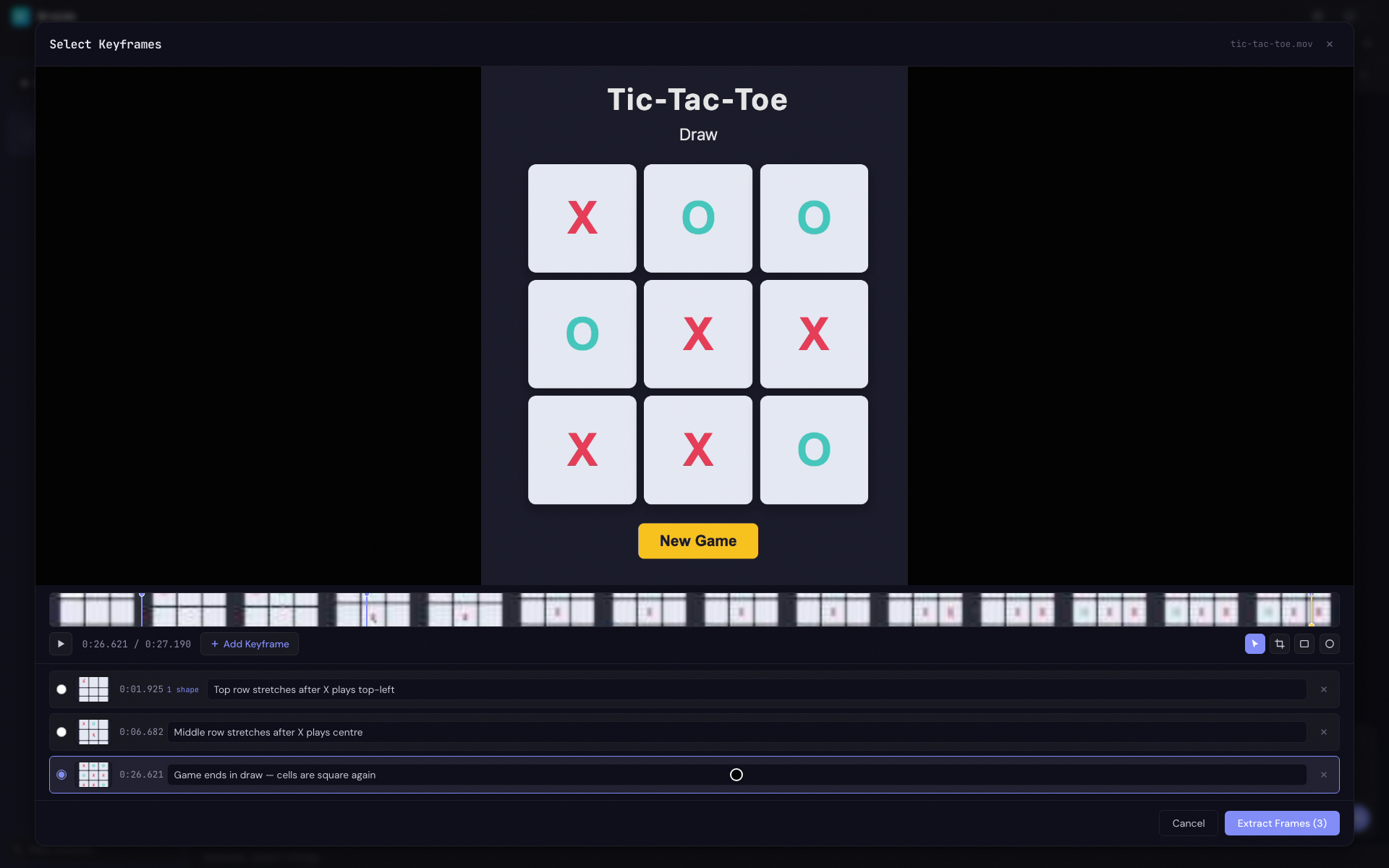
When you select or drop a video file, a Video Keyframe Modal opens near-fullscreen (95% of the viewport). This modal lets you scrub through the video and capture specific frames to send to the agent as image attachments — no external tools or ffmpeg required.
Video Loading
When the modal opens, the video file is fetched as a single download and held in browser memory. This means:
- The video is downloaded once — there are no additional network requests when you seek or scrub
- All seeking and frame extraction operates against the local copy, so scrubbing is instant regardless of file size
- A loading overlay covers the video preview during this process, showing "Loading video..." with the filename in the header
Video Preview
The top of the modal shows a video player that fills the available vertical space. The video filename is shown in the header toolbar, using all available space before truncating with an ellipsis.
Play and Pause
There are several ways to control video playback:
- Click the video preview to toggle between playing and paused
- Press Space to toggle play/pause (when not typing in a caption field)
- Click the Play/Pause button in the transport controls below the filmstrip
When toggling play or pause, a circular icon briefly appears in the centre of the video preview — a play triangle or pause bars — then scales up and fades out. This gives clear visual feedback that the state has changed, similar to YouTube or other video players.
Filmstrip Scrubber
Below the video preview, a thumbnail filmstrip replaces a traditional slider. When the video loads, small JPEG thumbnails are extracted at regular intervals (roughly one every 2 seconds, between 10 and 60 thumbnails depending on video length) and displayed as a continuous horizontal strip. This gives you a visual overview of the entire video timeline at a glance.
Timeline Generation
While the filmstrip is being generated, a loading overlay covers the video preview showing "Generating timeline..." with a progress bar that fills as each thumbnail is extracted. This prevents the video from visually jumping through seek positions during extraction. Thumbnails are generated progressively — each slot starts as a shimmering placeholder and fills in as its thumbnail is ready.
Scrubbing
- Click anywhere on the filmstrip to seek to that position
- Click and drag across the filmstrip for continuous scrubbing with pixel-level precision
- A white playhead line tracks the current playback position in real time (updated at ~60fps via
requestAnimationFramefor smooth motion) - A subtle overlay shades the portion of the filmstrip before the current position
Playback State During Scrubbing
The scrubber preserves your playback state:
- If the video is playing when you click or drag the filmstrip, it pauses during the scrub and resumes playing from the new position when you release the mouse
- If the video is paused when you click or drag, it jumps to the new position and stays paused
This means you can quickly reposition the playhead during playback without interrupting the flow, or precisely position the playhead while paused for accurate keyframe capture.
Visual Markers
- Keyframe markers appear as accent-coloured (cyan) vertical lines with a dot at the top, overlaid on the filmstrip at each keyframe's timestamp
- When a keyframe is selected via its radio button, an additional amber vertical bar with a bottom dot appears at that keyframe's position, so you can see which keyframe you're editing without confusing it with the playhead
Transport Controls
Below the filmstrip:
- Play/Pause — toggle video playback. You can also press Space to toggle play/pause.
- Time display — shows the current position and total duration in
M:SS.TTTformat. - Add Keyframe — captures the frame at the current playhead position. The button only rejects an add when a keyframe exists at effectively the same instant (within 1 millisecond), so frame-by-frame stepping with the arrow keys always produces a distinct keyframe. You can also press Enter to add a keyframe (when focus is not in a text input). Adding a keyframe deselects any currently selected keyframe.
- Annotation toolbar — appears on the right side of the transport controls when a keyframe is selected (see Crop and Shape Annotations below).
Keyframe List
Each added keyframe appears in an ordered list below the controls, sorted by timestamp. The list dynamically resizes to fit the keyframes — compact when empty, growing as keyframes are added, and never exceeding one third of the modal's height. When the list exceeds that limit it scrolls.
| Element | Description |
|---|---|
| Radio button | Select this keyframe for annotation editing (crop/shapes). Click again to deselect. The selected row is highlighted with an accent border. |
| Thumbnail | A small preview of the captured frame. Click to seek the video to that timestamp. |
| Timestamp | The exact time in M:SS.TTT format |
| Annotation badges | Shows "crop" and/or "1 shape" / "N shapes" when the keyframe has annotations applied. |
| Caption input | A text field where you can describe what the frame shows. Captions are included in the prompt text sent to the agent. Press Enter to finish editing. Focusing a caption automatically selects its keyframe for annotation. |
| Remove button | Removes the keyframe from the list |
Crop and Shape Annotations
When a keyframe is selected via its radio button, the video pauses and seeks to that keyframe's timestamp, and an annotation toolbar appears on the right side of the transport controls. This lets you crop the frame and draw shapes to highlight specific areas before extraction.
Annotation Toolbar
The toolbar contains four tool buttons and, when a shape tool is active, a row of colour swatches:
| Tool | Shortcut | Description |
|---|---|---|
| Select | V | Click on shapes to select them, drag to reposition. |
| Crop | C | Draw a crop marquee to define the region of the frame to extract. |
| Rectangle | R | Draw a rectangle outline on the frame. |
| Circle | O | Draw a circle/ellipse outline on the frame. |
The colour swatches (8 preset colours) appear only when the Rectangle or Circle tool is active. Select a colour before drawing a shape.
Crop Tool
With the Crop tool active:
- Click and drag on the video preview to draw a crop marquee, shown as a dashed white rectangle. The area outside the crop is dimmed.
- Drag inside the crop marquee to reposition it (the cursor changes to a move icon).
- Drag the resize handles (8 small squares at corners and edges) to resize the crop.
- Click and drag outside an existing crop to start a new one, replacing the previous crop.
- Press Backspace or Delete to remove the crop.
Shape Tools
With the Rectangle or Circle tool active:
- Click and drag on the video preview to draw the shape. After drawing, the tool automatically switches to Select mode so you can reposition the shape or draw another.
- Shapes are drawn as coloured outlines in the selected colour.
In Select mode:
- Click on a shape to select it (shown with a white highlight outline).
- Drag a selected shape to reposition it.
- Press Backspace or Delete to remove the selected shape.
Each keyframe stores its own crop and shapes independently. Annotation badges on the keyframe row show whether a crop or shapes have been applied.
Extracting Frames
When you're satisfied with your keyframe selections, click Extract Frames (N) to process them:
- Each keyframe is re-extracted at full resolution from the video using the browser's
<canvas>API - If the keyframe has a crop, the image is cropped to that region. If it has shapes, they are drawn as coloured outlines on the (optionally cropped) image.
- The extracted PNG images are uploaded to the session's uploads directory
- All frames are added as standard image attachments (they appear as attached image pills)
- A numbered caption list is automatically inserted into the prompt input:
Video keyframes from "demo.mp4":
1. The login screen with the error banner visible
2. After clicking submit — the spinner appears
3. The success confirmation page
Captions left empty default to the timestamp (e.g. [1:23.400]). The caption text gives the agent context about what each frame shows, so it can reason about the visual content in sequence.
During extraction the submit button shows a spinner and the modal cannot be dismissed. Extraction is sequential (one frame at a time) to avoid excessive memory usage. Once complete, the modal closes automatically.
File Cleanup
When the video was browser-uploaded (drag-and-drop in a non-Electron environment), the uploaded video source file is automatically deleted from the session's uploads directory when you either confirm or cancel the keyframe editor. Only browser-uploaded files are cleaned up — videos opened from their original filesystem path (via the file picker or Electron drag-and-drop) are never touched. The server enforces this by rejecting deletion requests for any path outside the session's uploads directory.
Keyboard Shortcuts
All keyboard shortcuts work regardless of which element has focus, except when typing in a caption input field.
| Key | Action |
|---|---|
| Space | Toggle play/pause |
| Enter | Add a keyframe at the current position |
| Arrow Left | Step back by one frame (1/30th of a second) |
| Shift+Arrow Left | Step back by 1 second |
| Arrow Right | Step forward by one frame (1/30th of a second) |
| Shift+Arrow Right | Step forward by 1 second |
| Enter (in caption) | Finish editing caption |
| Escape | Close the modal |
| V | Switch to Select tool (when a keyframe is selected) |
| C | Switch to Crop tool (when a keyframe is selected) |
| R | Switch to Rectangle tool (when a keyframe is selected) |
| O | Switch to Circle tool (when a keyframe is selected) |
| Backspace / Delete | Remove selected shape, or remove crop (when in crop mode) |