GitHub Integration
Braide integrates with GitHub to let you browse repository issues and pull requests, attach them to agent sessions, and start new sessions directly from either. This gives agents full context about the work you want done.
Prerequisites
- Your project directory must be a Git repository with a GitHub remote
- A GitHub token must be set as an environment variable:
export GITHUB_TOKEN=ghp_your_token_here
# or
export GH_TOKEN=ghp_your_token_here
The token needs read access to issues and labels for your repositories.
Opening the GitHub Panel
The GitHub panel is available from any view — the home screen, a new session, or an existing session. There are two ways to open it:
- Toggle button — Click the GitHub icon button (the Octocat logo) in the top-right area of the current view
- Edge hover — Move your cursor to the right edge of the view (within ~10 pixels of the edge) and the panel will slide open automatically
The panel animates open and closed with a smooth slide transition. When opened via edge hover, the panel overlays the content and closes automatically when you move the cursor away.
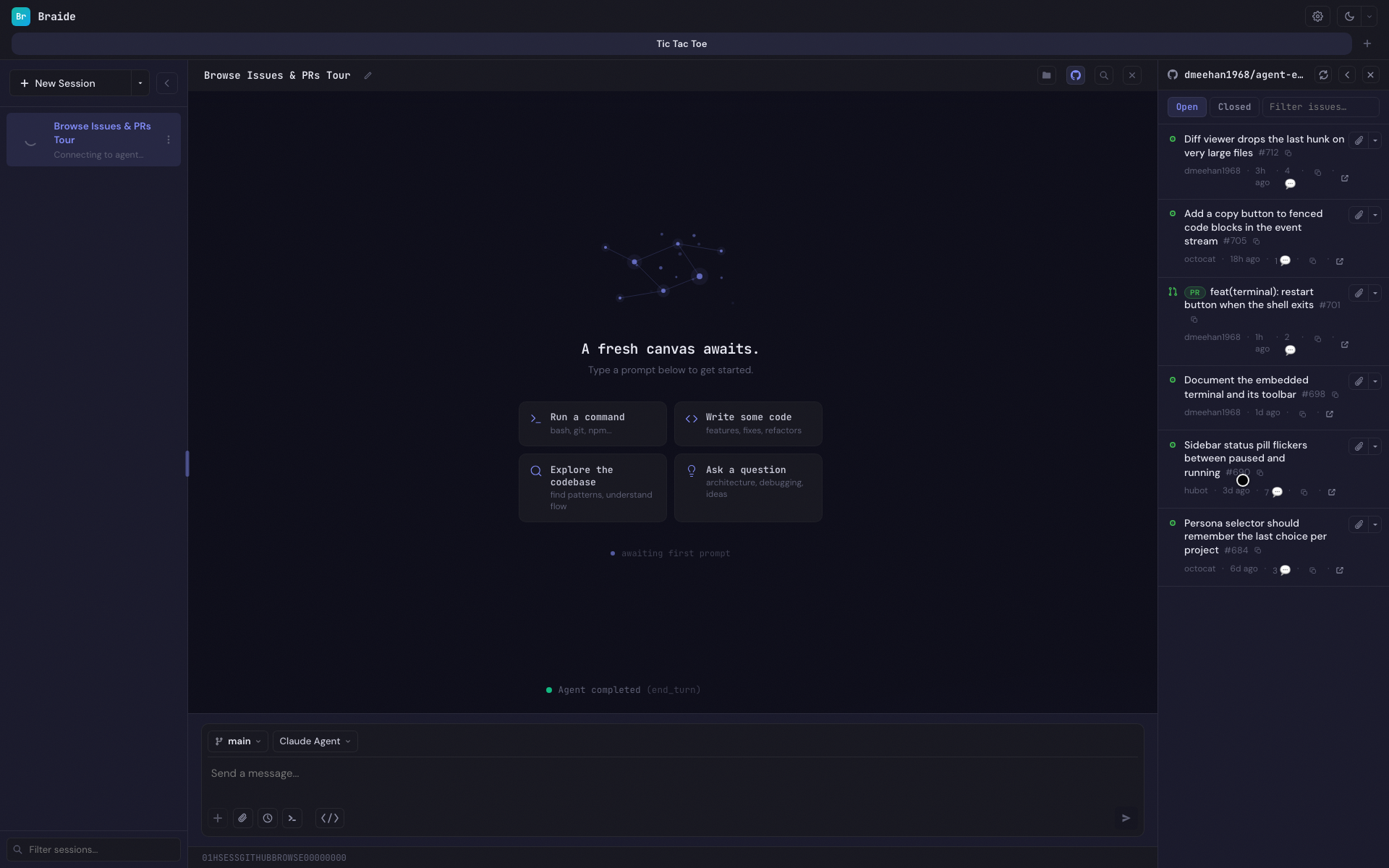
Browsing Issues and Pull Requests
The GitHub panel displays both issues and pull requests from the project's repository, interleaved in a single list sorted by most recently updated:
- Filter by state — Toggle between Open and Closed using the filter buttons at the top of the panel. The filter applies to both issues and pull requests; merged PRs count as closed.
- Search — Type in the search field to filter by title, number, label name, or body text. Searching loads all remaining pages for the selected state, so older issues are matched too (large repositories may take a moment)
- Row details — Each row shows its title, number, author, labels, comment count, and relative timestamps
- Pull to refresh — Scroll up past the top of the list to trigger a refresh, or click the refresh button in the panel header
- Infinite scroll — Additional pages load automatically as you scroll down
- Caching — Results are cached for 5 minutes to prevent flickering when reopening the panel
Telling Issues and Pull Requests Apart
Pull requests appear in the same list as issues but are visually distinct so they can be identified at a glance:
| Kind | Leading icon | Badge |
|---|---|---|
| Open issue | Green open-circle | — |
| Closed issue | Purple checkmark | — |
| Open pull request | Green git-branch | Green PR pill beside the title |
| Merged pull request | Purple git-merge | Purple PR pill beside the title |
| Closed (unmerged) pull request | Red cross-box | Red PR pill beside the title |
The coloured PR badge that prefixes pull request titles uses the same open/merged/closed palette as the leading icon, so the state of a pull request is readable even in the compact panel width where labels are hidden.
Panel Width
The panel can be displayed in two widths:
| Width | Description |
|---|---|
| Compact | A narrow sidebar (320px) showing issue titles and metadata |
| Full | An expanded view (50% of the viewport) that also displays issue labels |
Click the expand/collapse chevron button in the panel header to toggle between widths. On narrow viewports (below 900px), the panel is forced to compact width.
Row Actions
Each row in the panel — issue or pull request — has a split button in the top-right corner that provides context-aware actions. The same attach and chat actions apply uniformly to issues and pull requests. The available actions depend on whether you have an active session.
With an Active Session
When you are in a session (new or existing), each issue shows:
- Attach (paperclip icon) — Click to attach the issue to the current session. The issue appears as a pill in the session header and its content is included as context when you send your next prompt.
- Chat (speech bubble icon, in dropdown) — Click the chevron to reveal a dropdown with the Chat option. This starts a brand new session with the issue pre-attached.
Once an issue is attached, the button changes to:
- Detach (unlink icon) — Click to remove the issue from the current session. The Chat dropdown is hidden for attached issues since the issue is already part of the current session.
Without an Active Session (Home Screen)
When you are on the home screen with no session selected, each issue shows only:
- Chat (speech bubble icon) — Click to create a new session with this issue automatically attached. You will be taken to the new session view where you can select an agent and begin working on the issue.
Tooltips
Hover over any button to see a tooltip describing its action:
| Button | Tooltip |
|---|---|
| Attach (paperclip) | "Attach to session" |
| Detach (unlink) | "Detach from session" |
| Chat (speech bubble) | "Start new session with this issue" |
| Chevron (dropdown) | "Start new session with this issue" |
Attached Issue Pills (Composing vs Submitted)
Attached GitHub issues go through two visual phases in the interface:
- Prior to Submission: When you attach an issue to an active session, it initially appears as a pill in the prompt composing area directly above the prompt textarea. These pills are color-coded in cyan, displaying the GitHub Octocat icon, issue number, and title. You can hover over the pill to reveal the × button and detach the issue. Clicking the pill opens the Issue Detail Popover described below.
- Post-Submission: Once you submit the prompt (or queue it), the attached issues are cleared from the composing area. To access them, click the Attachments button (the paperclip icon) in the Session Header toolbar (next to the Reset button). This opens the Attachments Popover, displaying all issues and images attached to the session context. Clicking any issue pill inside this popover opens its details.
You can attach multiple issues to a single session. When you send a prompt, all attached issues that haven't been sent previously are automatically included as context.
Issue Detail Popover
Clicking on an attached issue pill (either in the prompt composing area before submission, or in the session header's Attachments Popover after submission) opens a popover with the full issue detail:
- Header — Issue number, state badge (Open or Closed, color-coded), title, author, and opened/updated dates
- Labels — Colored pills for each label applied to the issue
- Description — The full issue body, rendered as Markdown
- Pull Requests — An expandable list of PRs that reference or close the issue, showing state (open, closed, or merged), branch name, and merge date
- Referenced Issues — An expandable list of other issues that cross-reference this one, with their state
- Commits — An expandable list of commits linked to the issue, showing the SHA, message, author, and date
- Comments — An expandable list of all comments with author and date, rendered as Markdown
The Pull Requests, Referenced Issues, and Commits sections only appear when there are items to display. Click outside the popover or press Escape to close it.
Opening an Issue as a Tab
The header of the Issue Detail Popover also contains an Open as tab button (the arrow-out-of-square icon, next to the close button). Click it to promote the issue onto the session's main canvas as a dedicated tab — the popover closes and the new tab becomes the active one.
The issue tab shows the same content as the popover (labels, description, timeline of comments, commits, PRs, and cross-references) but on a wider canvas with the activity section expanded by default. It sits alongside any open file tabs and follows the same interaction model: switch with a click, reorder by drag, close with the × on the tab, and the state persists with the session so the tab reappears when you return.
See File Browser & Editor → Tabs for full details on tab behaviour.
Information Included in Attached Issues
When an issue is sent to the agent, the following information is included:
| Field | Description |
|---|---|
| number | The issue number |
| title | The issue title |
| description | The full issue body text |
| state | Whether the issue is open or closed |
| stateReason | Why the issue was closed (completed, not_planned, or null if open) |
| author | The GitHub username of the person who opened the issue |
| labels | All label names applied to the issue |
| comments | Each comment's body text along with the author's GitHub username |
| commits | Commits referenced in the issue timeline, including SHA, message, author, and date |
| pullRequests | Pull requests that reference or close the issue, including PR number, title, state (open, closed, or merged), branch name, and merge date |
| crossReferences | Other issues that reference this issue, including their number, title, and state |
| createdAt | When the issue was created |
| updatedAt | When the issue was last updated |
This gives agents a comprehensive view of the issue — not just what the problem is, but who reported it, what work has already been attempted (via PRs and commits), and what related issues exist.
WIP Labels
Braide automatically manages a label on GitHub issues to signal that an agent is currently attached.
- Added — When you attach an issue to a session, the label is added to that issue on GitHub.
- Removed on archive — When a session is archived, the label is removed from all of its attached issues.
- Removed on delete — When a session is permanently deleted, the label is also removed from all attached issues.
- Removed on detach — If you detach an individual issue from a session, the label is removed from that issue.
Labelled issues appear dimmed in the GitHub panel, making it easy to see which ones already have an agent working on them.
Configuring the label name
The label defaults to wip but is configurable per project. Open Settings → Project Settings → Issue Tracker and enter the label name you'd like Braide to use; it's persisted under wipLabel in the project's settings.json.
- The value is trimmed before use; whitespace inside the name is preserved verbatim so labels like
agent-activeorin-progressare stored as-is. - Minimum length is 2 characters after trimming. Shorter values are rejected by the input.
- Leaving the field blank reverts to the default
wip.
Use this when another tool in your workflow already interprets the literal label wip and you want Braide to claim issues with a different name.